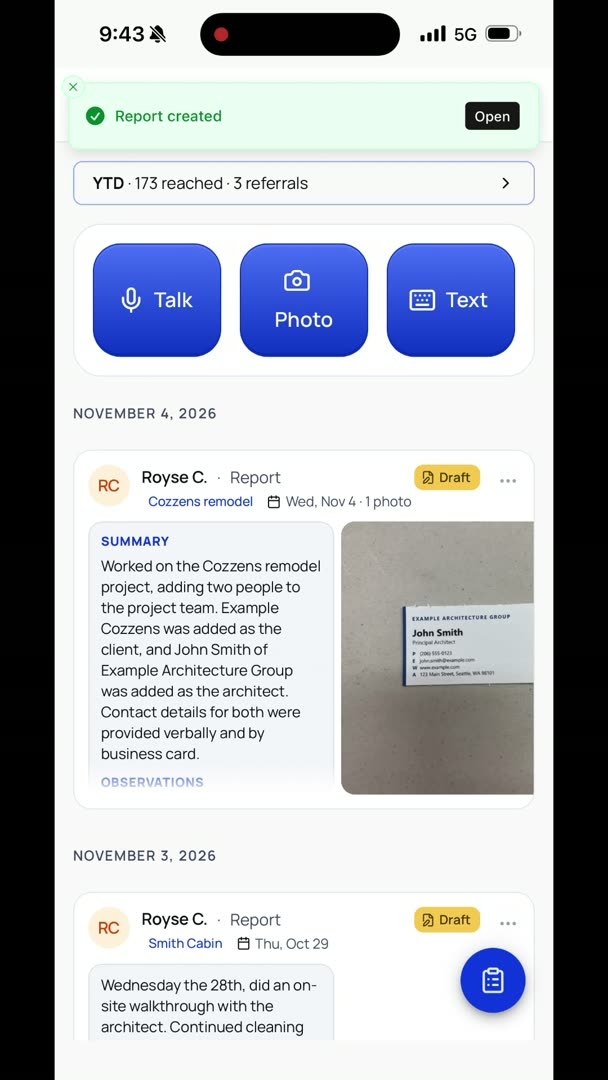
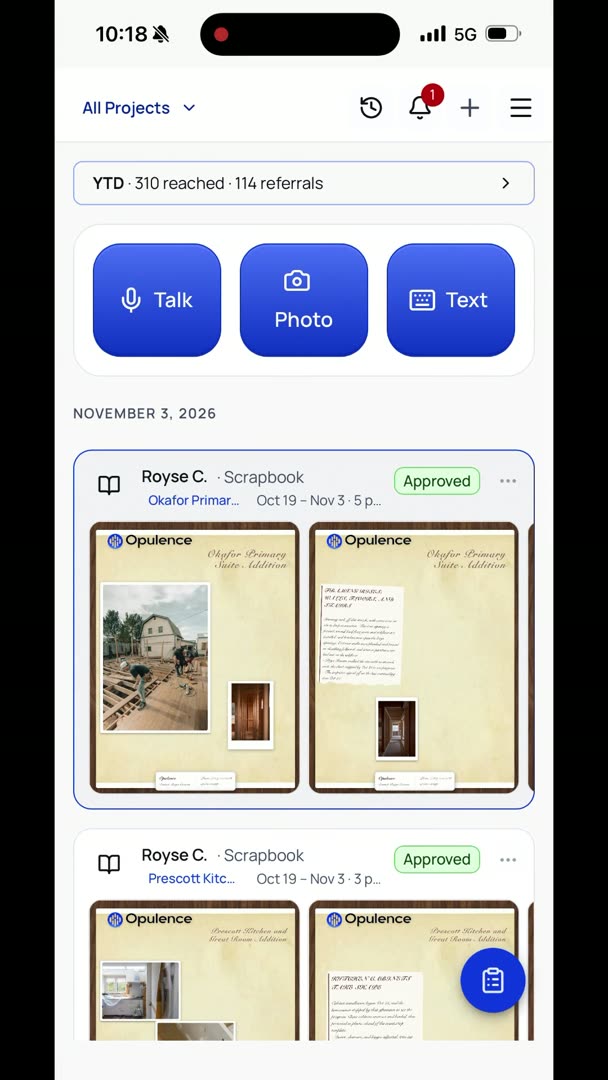
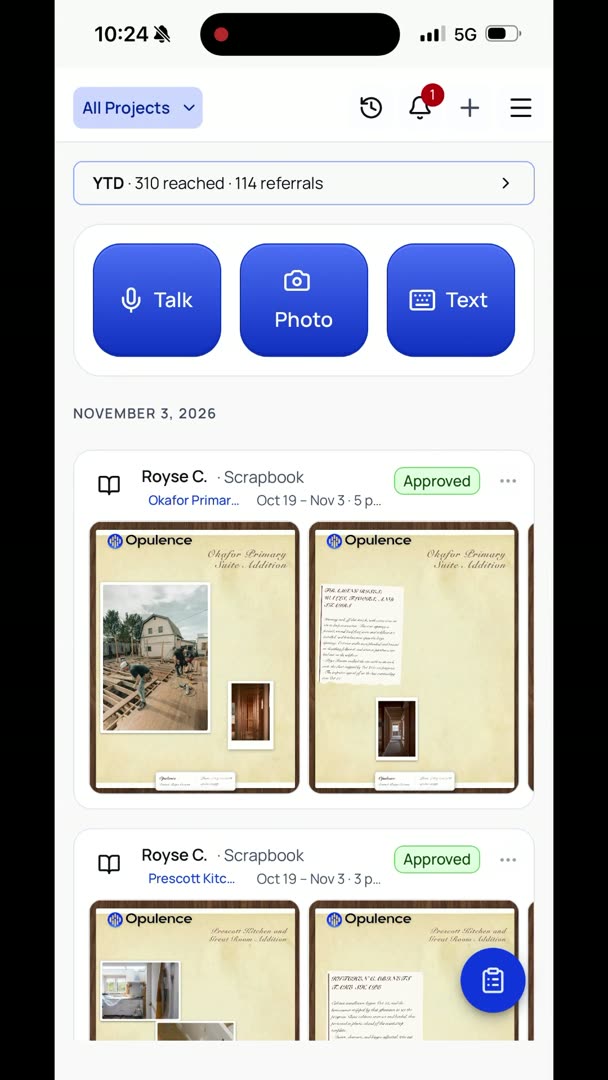
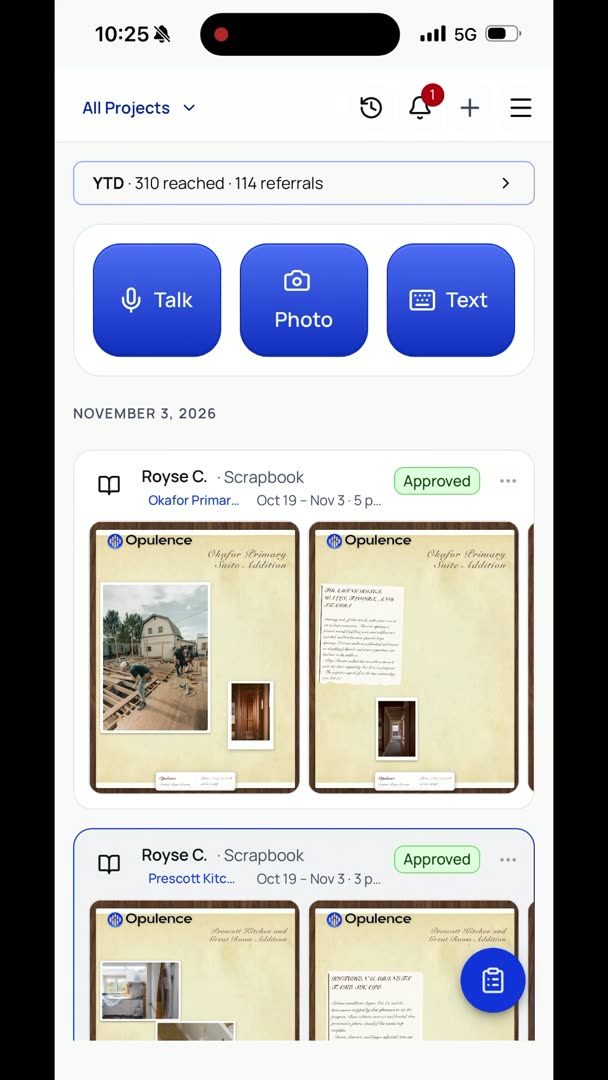
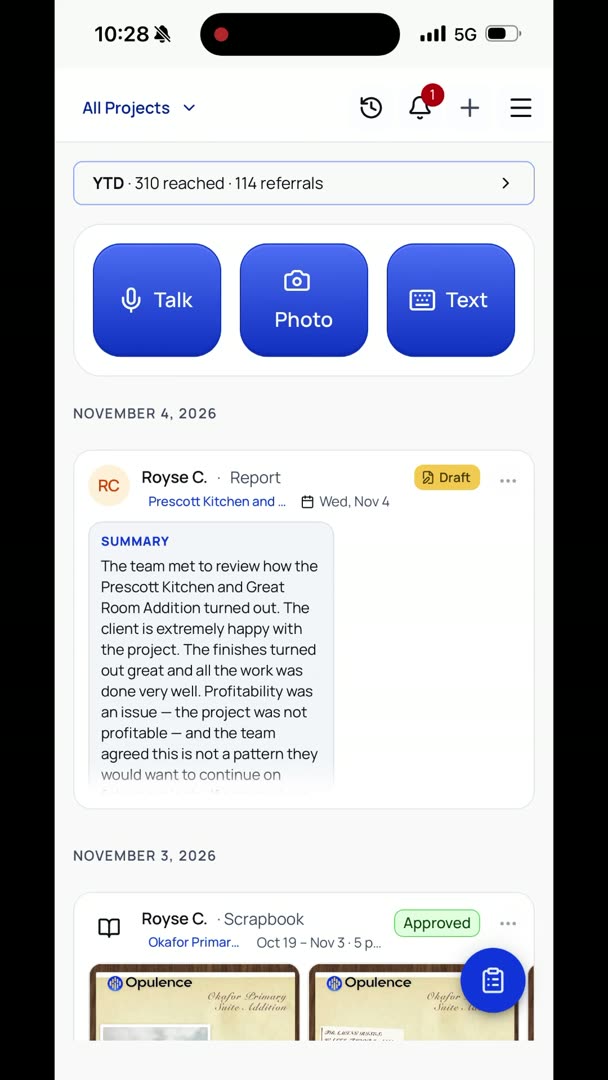
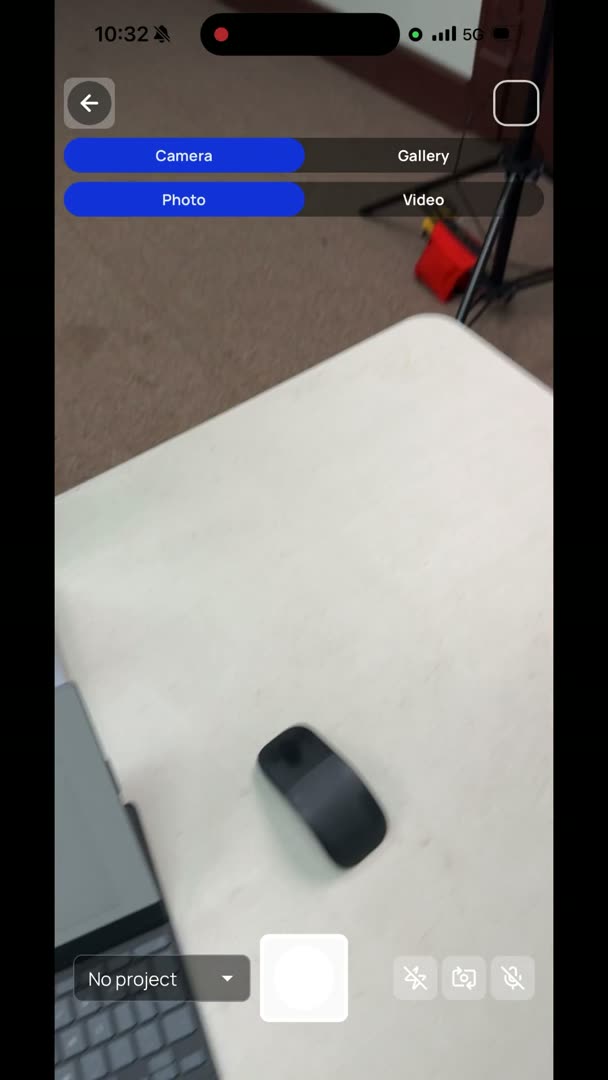
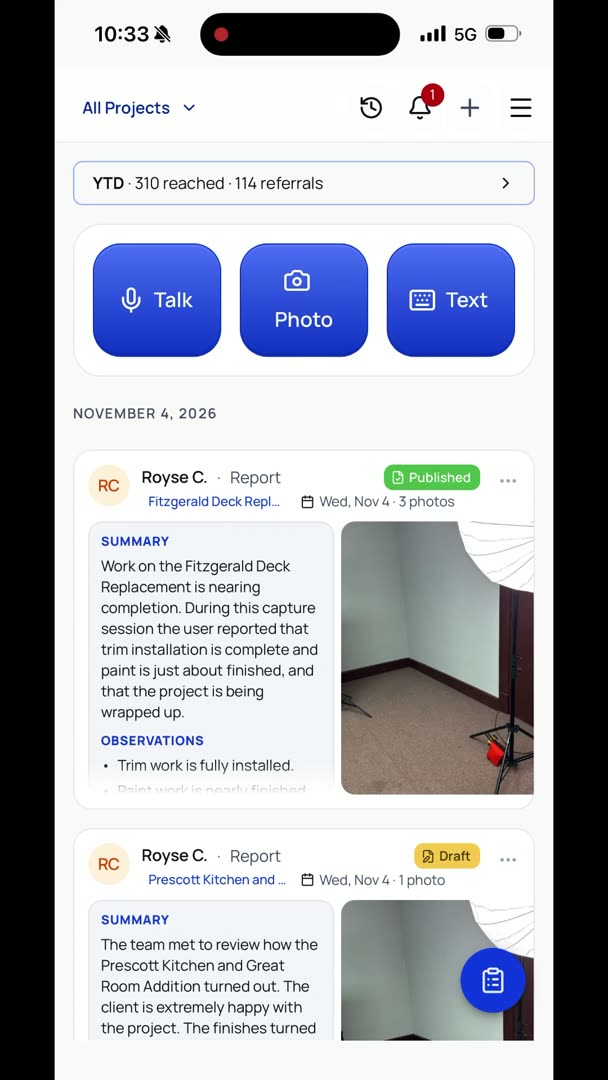
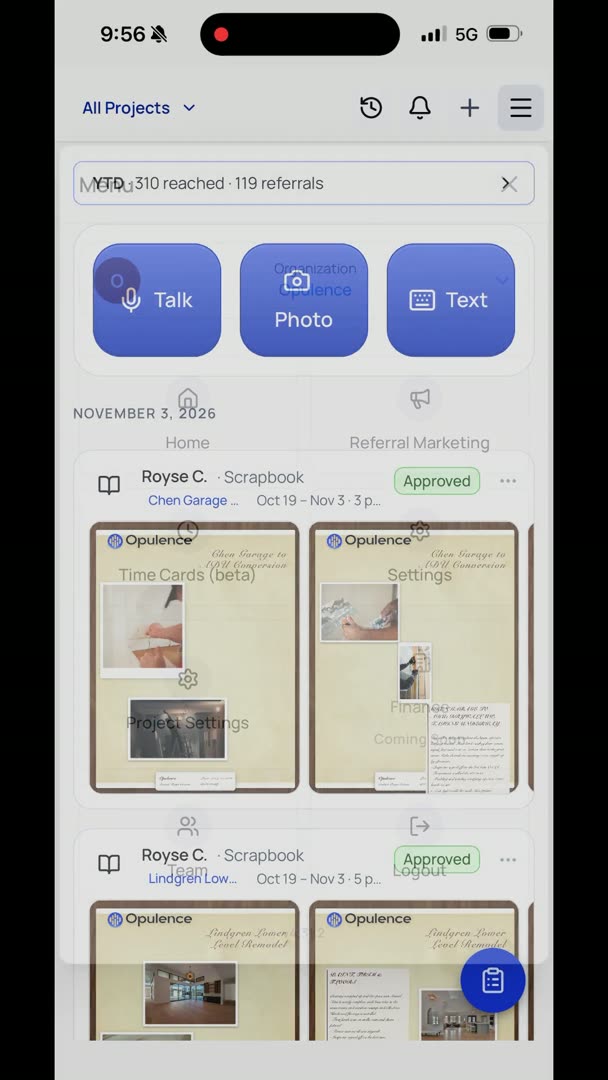
So right at the top of my feed, right in the center, is a big Photo button, real easy to access all your photos, everything that you're doing. Nice part about this too is if I take a photo inside the app, it doesn't sit there and clutter up all of my phone's memory. So you could take hundreds and hundreds of photos on a project, and it's not just sitting on your foreman's phone or your project manager's phone or something like that. It's in Opulence, so you can access it. It's not taking up space on their phones.
So I want to show you the gallery really quickly. There are three things that you can look at. Basically, you can look at it by project, flip through. I can also jump to project here if I want to go through and say, "Man, I want to see the Hawthorne residence, that's what I care about right now." Or I'm going to flip all the way to the top here, I'm going to go to the right, and I'm just going to click Team.
I want to say, let's see who's doing what. Now, this is all just test data. Normally we've got a bunch of teammates, so you can jump to a specific teammate, but I want to see what Royse is taking photos of lately. Okay, so yeah, like this. The other thing you can do is that you can go to Phone, your phone.
You basically go through and say, "What is it that I need to add to a project from my phone?" So I'm just going to select these three right here. All you have to do is click on them. I'm going to say, well, what project do I want to put it to? Fitzgerald Deck Replacement.
This is the deck handrail and some issues that we had there, and I'm going to add three photos to that. So it's going to add that.