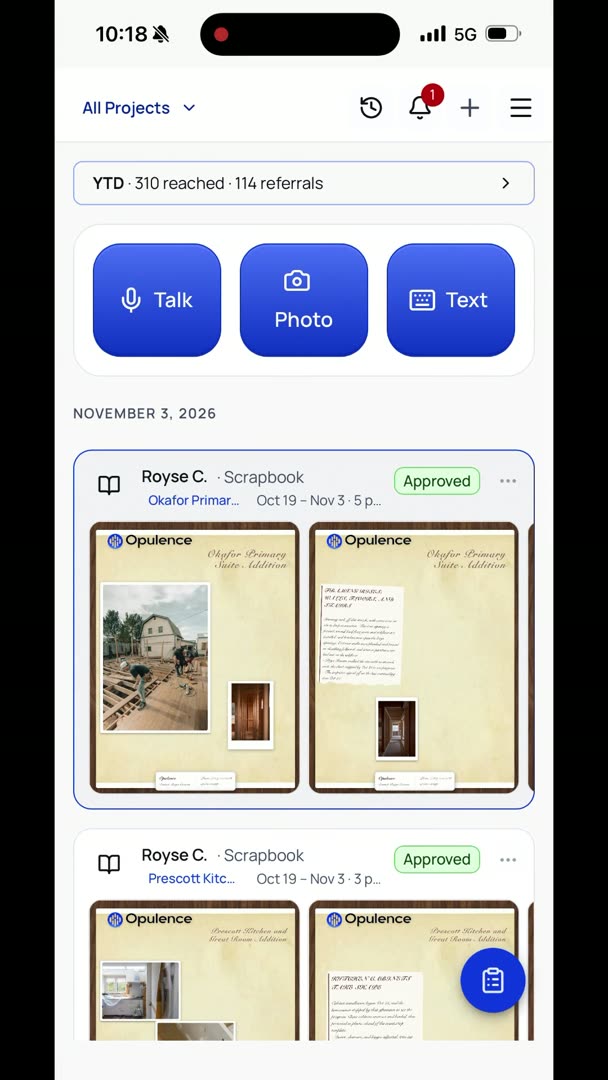
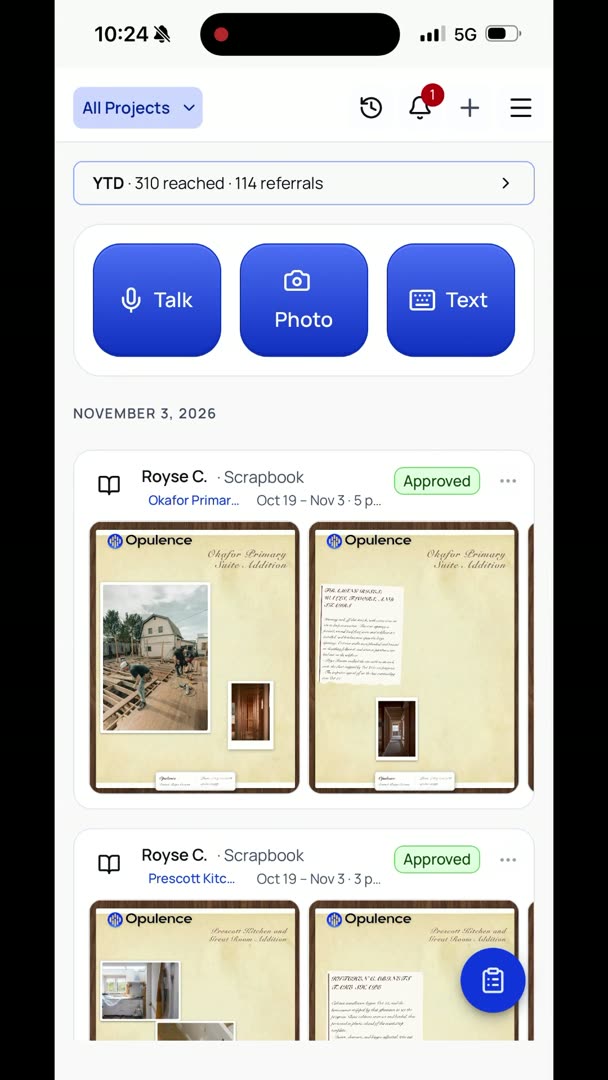
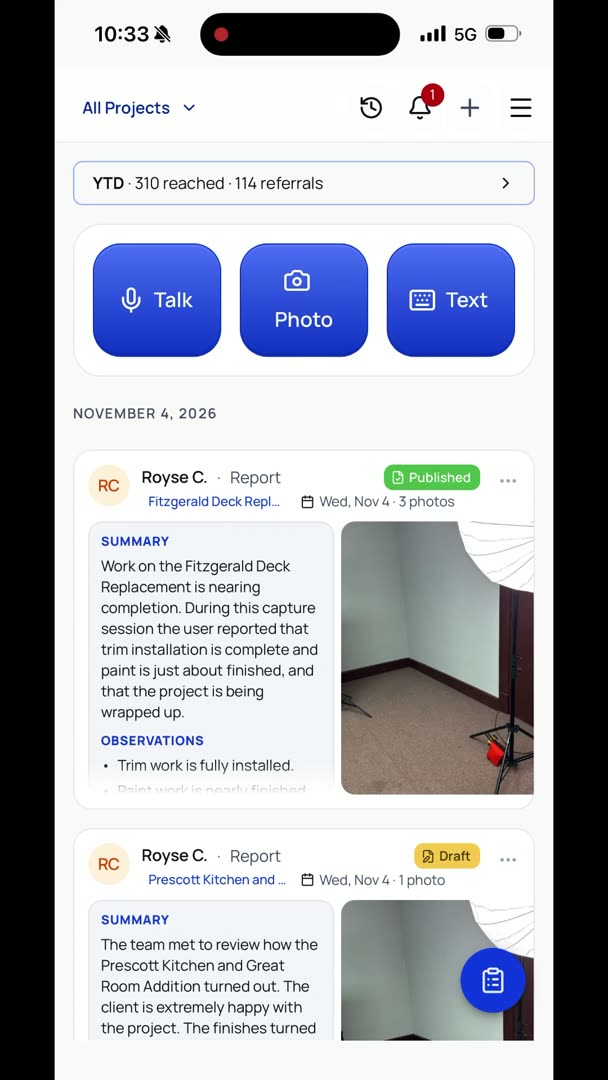
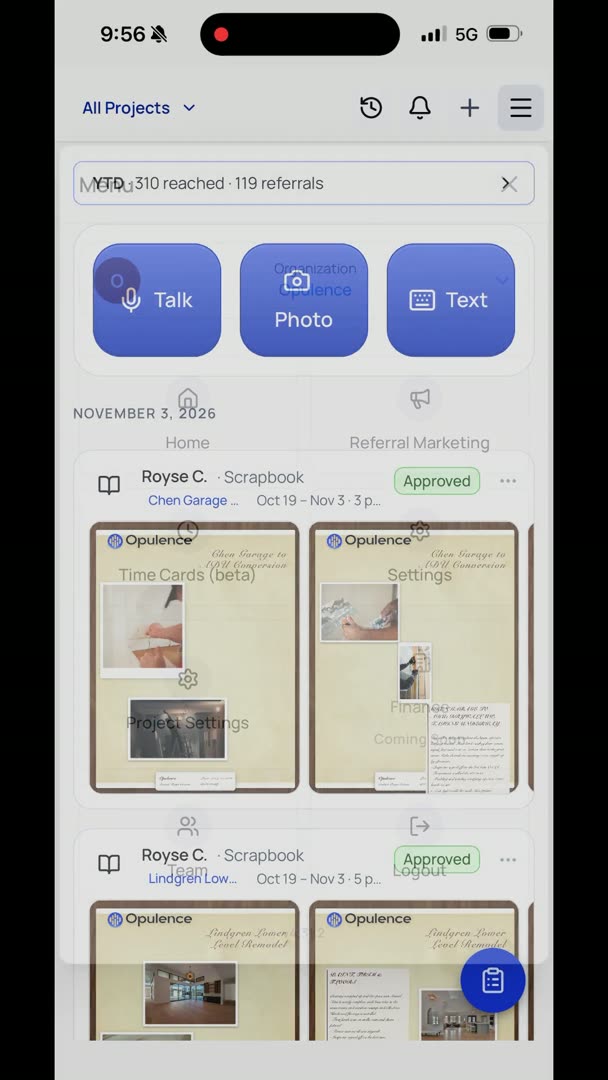
I want to show you how the notifications work. It's actually something I'm pretty excited about, because it's so simple, streamlined, and it's actually really powerful. We're going to go up to the bell up there, and you can see any notifications that you've gotten. So the cool thing is it'll basically tell you, "Hey, this happened, this didn't happen." You can click on them, but you can see any upcoming reminders, anything that's scheduled.
But here I'm going to actually do something kind of fun. I'm going to play with the notifications, and I'm going to basically say I want to text myself a reminder. "Remind me to call Ben in 60 seconds, please. Send me a text."
So the cool thing about this is that you can basically send yourself a text message and say, "Hey, I need to call this client back in the spring." I'm never going to remember to do that. I'm going to put it on a sticky note somewhere, and it's never going to happen. I'm going to lose the sticky note by that time. So you could basically say, "Hey, March 30th at 9 a.m., shoot me a text and remind me to call such and such client."
So those type of things are actually super cool. I've been using this for all kinds of silly little reminders, and it's working out very well.
So it just sent me a reminder saying, "Hey, call Ben."
So here up at the very top, I've got a little banner for the reminder. I can dismiss it, or I can click on it. It opens it. So I'm going to go into my icon. There it is up at the top, so I can see it if I want to.
Now I'm going to do one for a week from now, so we can look at how it's scheduled. "Please send me a text reminding me to call Ben next Wednesday at 10:30 a.m."
Okay, so that's set. Now I'm going to go into my notifications, click the bell, and under upcoming reminders, I have a notification to call Ben Wednesday, November 11th, at 10:30 a.m., right at the bottom.
So let's say I want to send a text message out to my team. It's actually really simple. You go to the plus button in the upper right-hand corner. Go down to Text Your Team. Here you can basically check who gets it, how you want to do that.
You can group, check, uncheck. I want to make sure all the owners and admins get this one as well. Or maybe I just want to send it to some of the field people and say, "Hey, remember to submit your daily reports." Or if I want to do a custom message, I click over here, Custom Message, and start typing. There are also some times where it's going to text you a question.
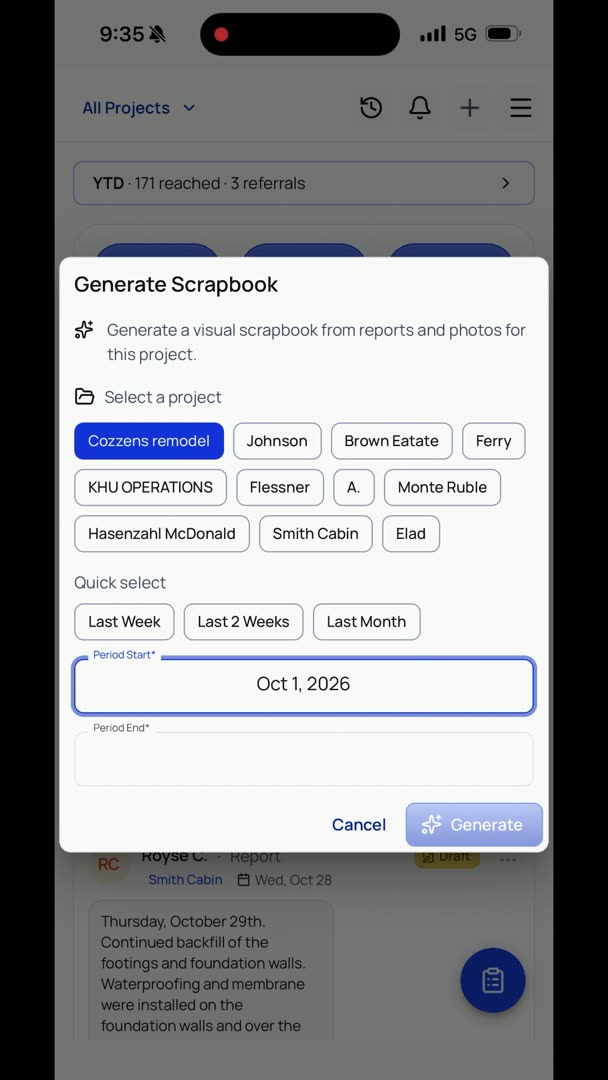
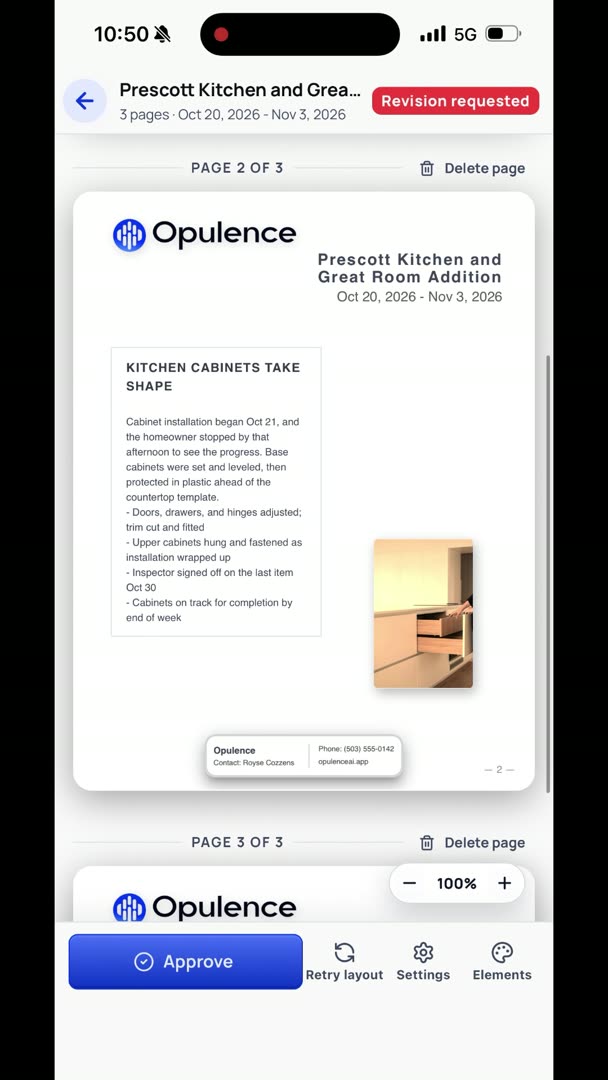
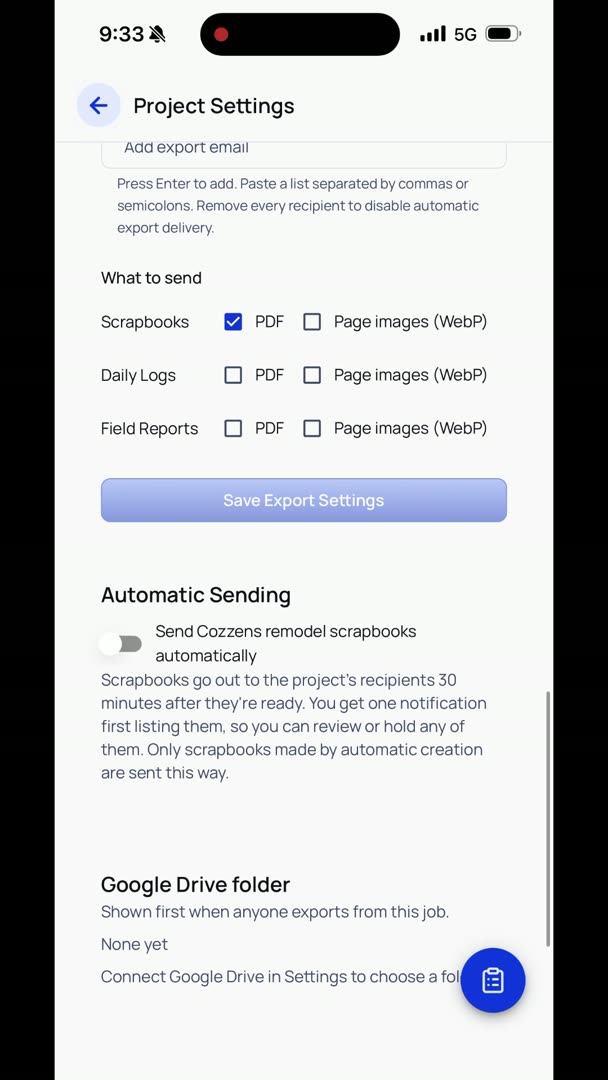
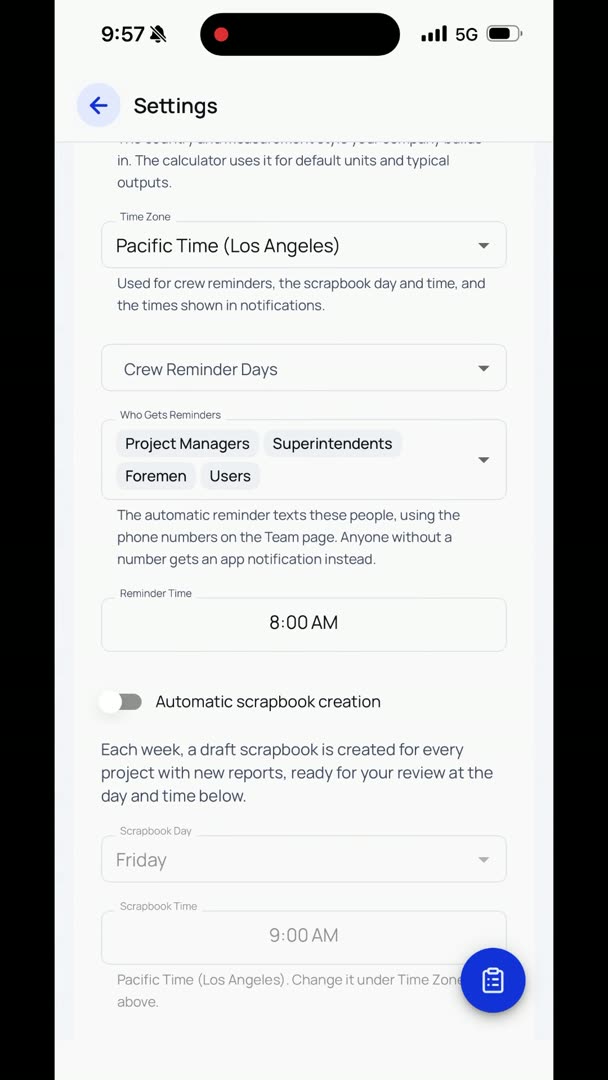
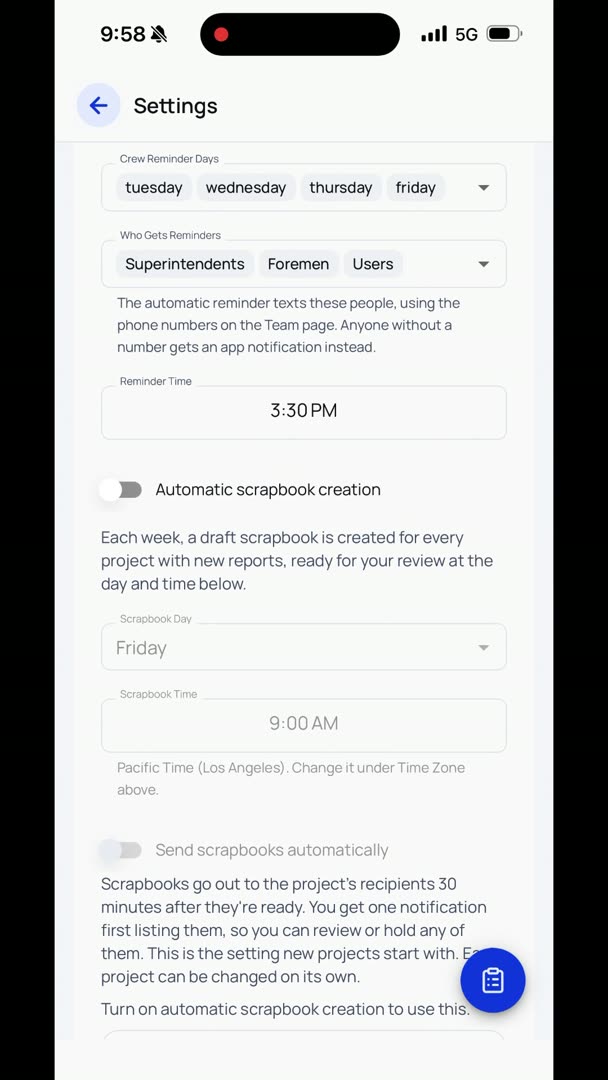
In some cases, like if you're an owner or an admin and you have it set to do an automatic send of scrapbooks, it's going to send you a text about 30 minutes prior and say, "Hey, just letting you know that we're going to create the scrapbook in about 30 minutes." And then once it creates the scrapbook, it's going to send you another text and say, "Hey, we've created the scrapbook. Do you want to review it before I send it?" Essentially, just giving you the option to just, right there in the text, say, "Hey, stop, don't send it," or, "I want to review it." And so you can actually respond to the program within text.