So you just downloaded the app. We're going to click Get Started, down here at the bottom.
It's going to ask you for your email address.
You're going to click Send My Code. It emails you a quick code. Super easy. Enter the code, hit Verify. Now I have two ways I can do this.
I can create a password, or I can skip it and use an email code. I'm going to create a password, because that's how I like to do things. But if passwords are not your thing, you're not required to.
What do I want to call this company?
If you don't have a company name and you're just buying this for personal use, put your own name in there. Not a big deal.
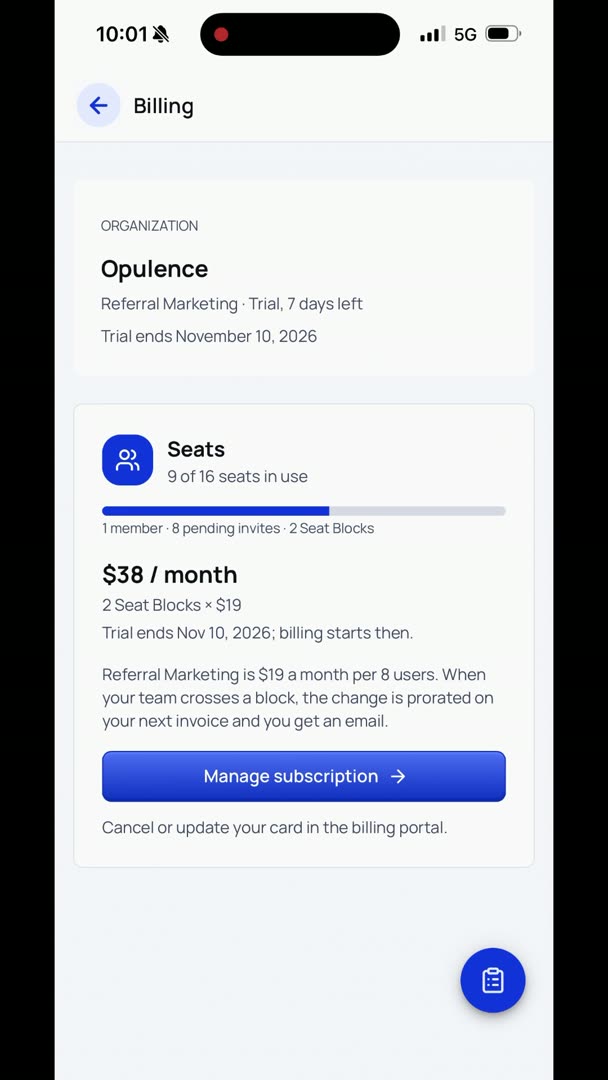
Here's where it asks you: do you want to start a 7-day free trial, or do you just want to use the free app? We're going to start the 7-day free trial.
It takes you to Stripe checkout, then hit Start Trial down at the bottom.
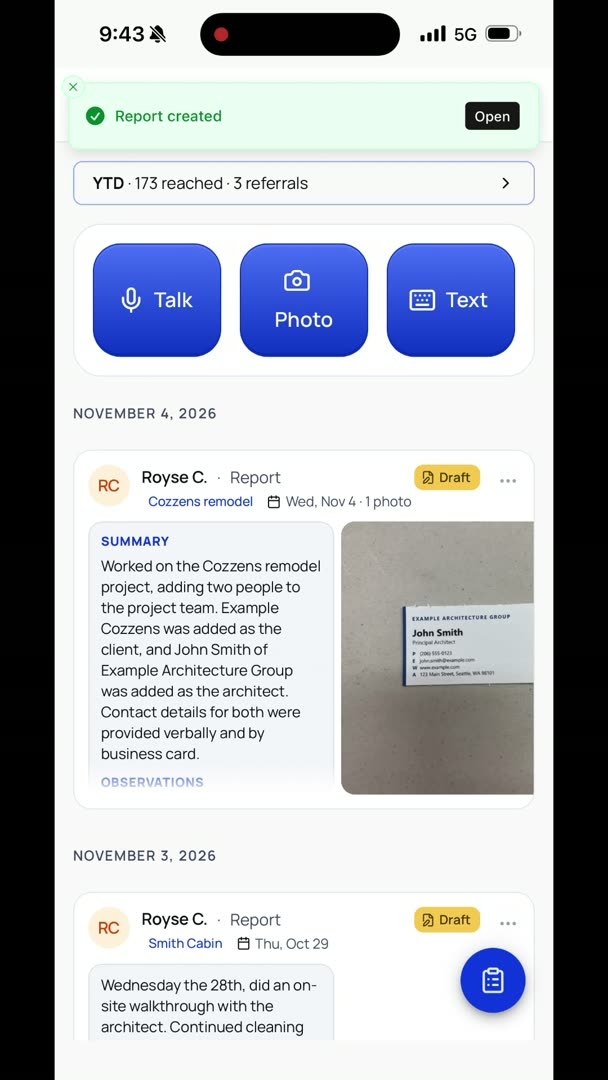
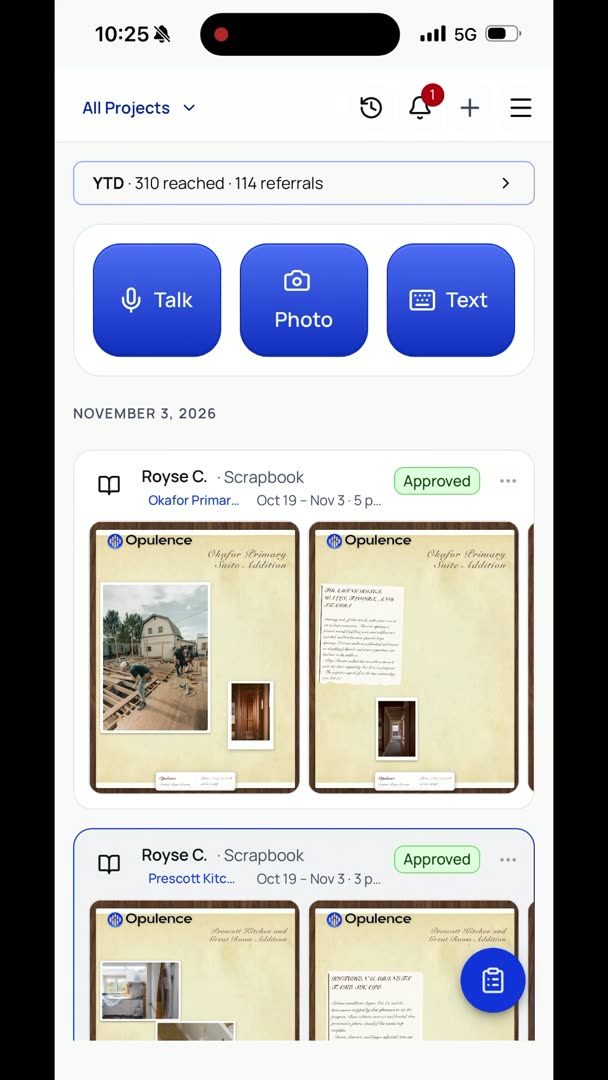
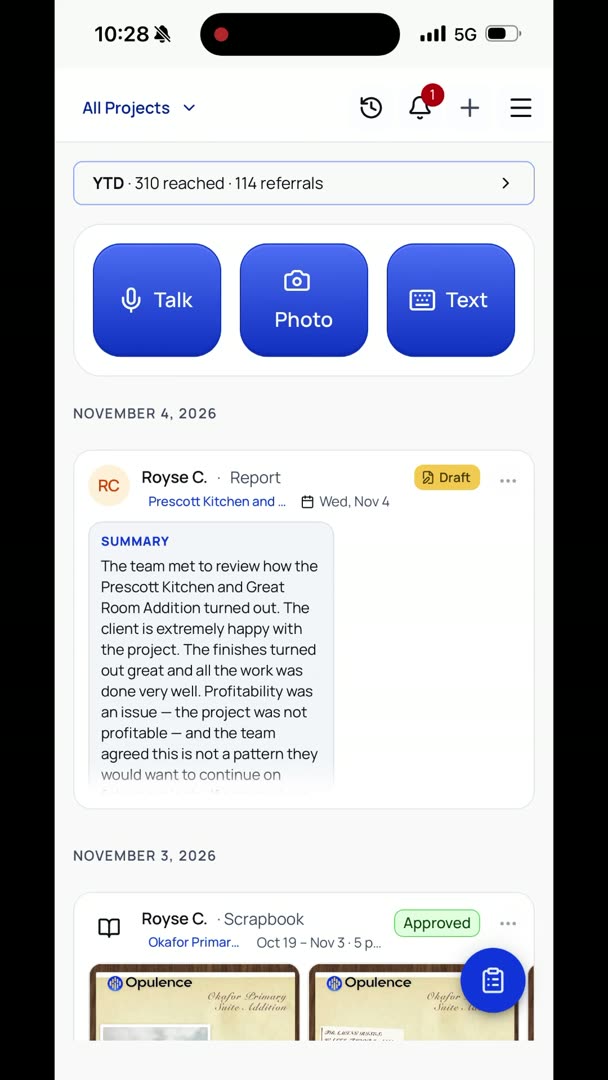
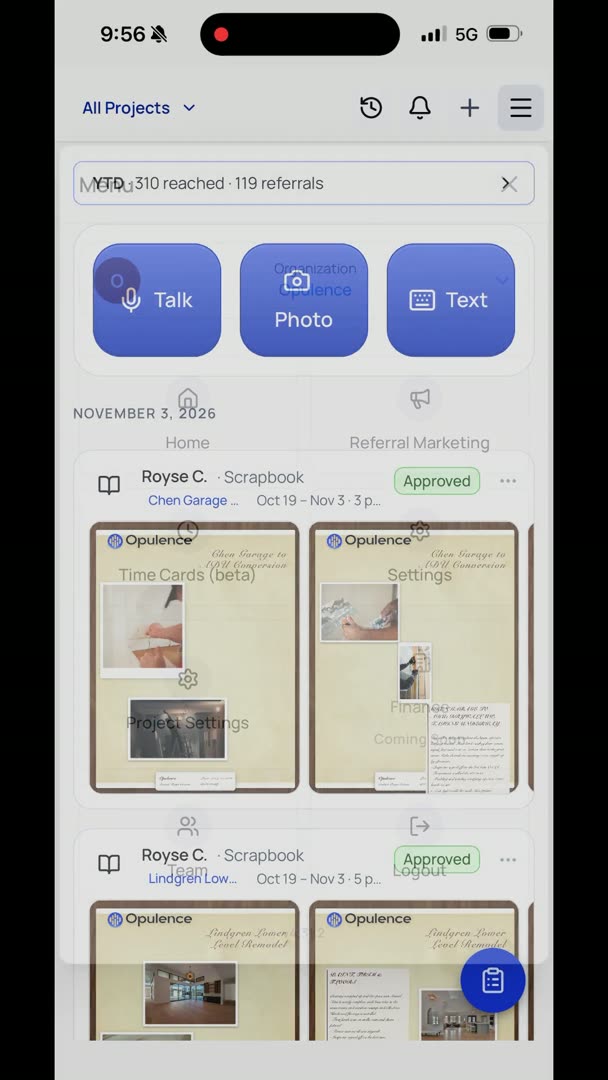
You're all set. Your 7-day free trial has started. Go back to the Opulence app to keep going. Back in the Opulence app, here you get to see some simple things. Tap here to get set up, tap here to set up your company, tap here to set up your crew.
It basically runs you through a few things. Sample scrapbook, sample report, so you can play with those. So let's tap here to get set up. Okay, what's my name? What's my phone number?
These go on my reports. This is also how it gets set up to text me anything.
Bam. Done. Easy. Okay, set up my company. Let's say I actually have a company.
Let's change this to Opulence. Okay, I want to upload my logo. So I'm going to go to my photo library.
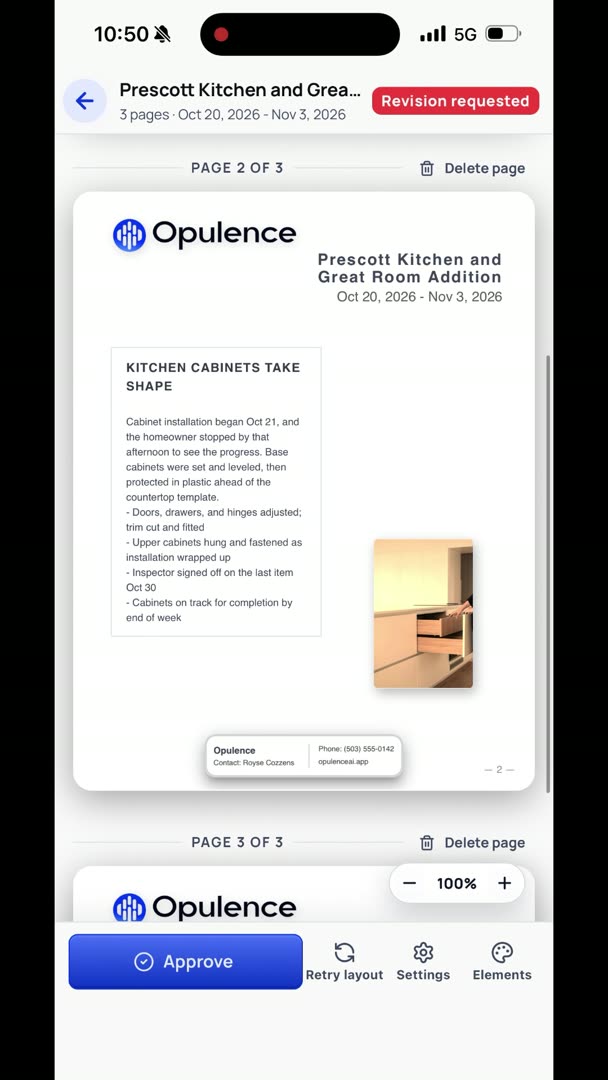
Then it asks for a contact name. You can put your ops person, your front desk, or your name. Whatever it is that you want. Your name, phone number and your website go in any of the scrapbooks that go out. And they're hyperlinked.
So somebody gets an email forwarded to them from their aunt who's building their dream home. They're rolling through here, and they want to contact you and ask you a question. "Hey, how long does it take to actually... if I buy bare land that's in front of me right now, or we've got some options, how long would it take to do the pre-process before we can actually get a permit?" They want to talk to a real contractor.
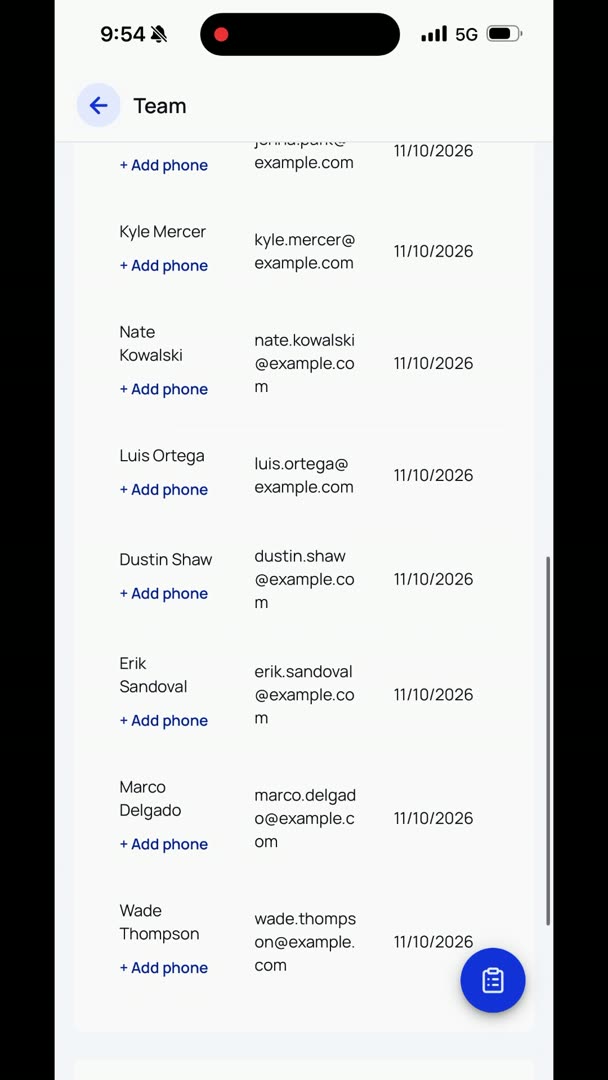
Bam. They have your contact information, real quick and easy. So, tap here to set up your crew. Here we can invite teammates. Let's just invite a John Smith right now.
We're going to give an email address, john@example.com, and a mobile phone number. I suggest putting a mobile number in there. That way they can receive texts.
You can text them, or they can set up text reminders, or anything like that. So let's just say 206-555-1234. Okay, and he is going to be... what do we want? Let's say he's a superintendent.
And we send an invite. It goes out. Pretty simple, nothing to it. Okay, so we set up our crew. Then there's Get Started.
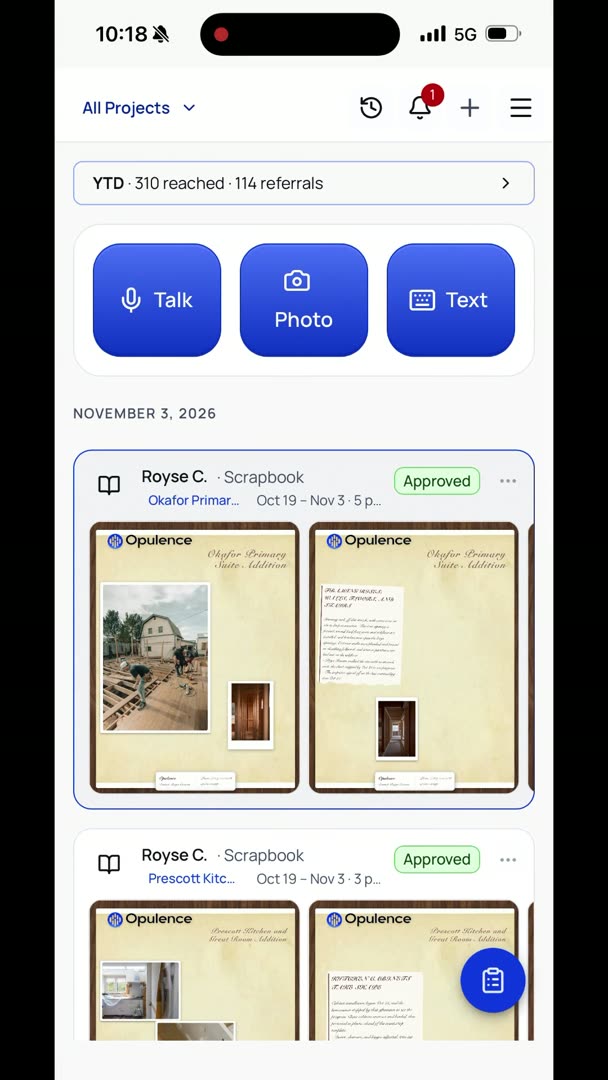
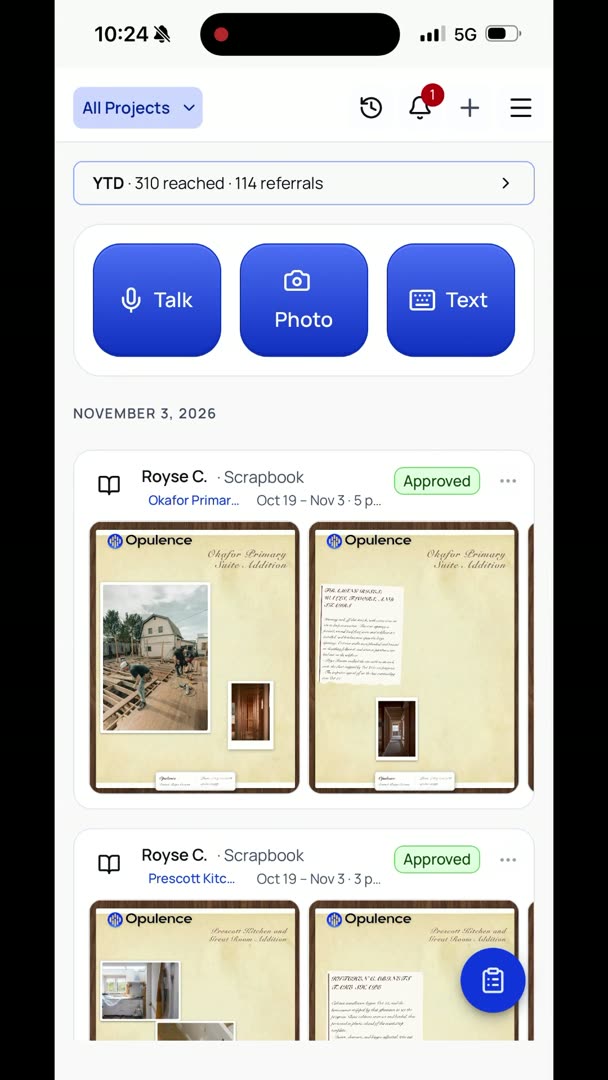
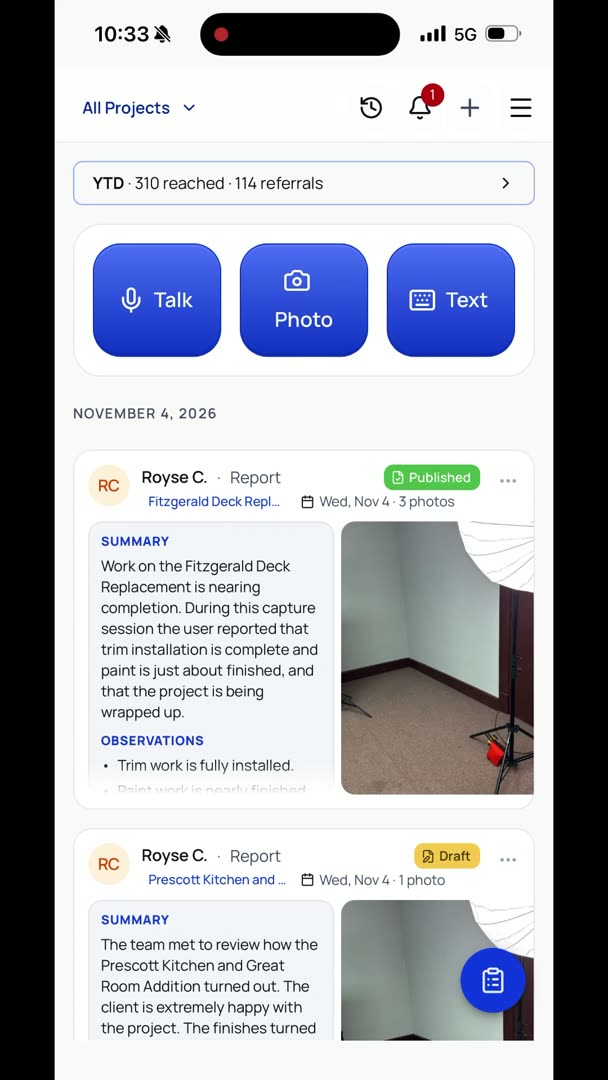
It just goes through and tells you you can tap Talk, Photo or Text at the top of Home. It gives you a quick overview on how to do it. It is super simple setting this up for your first time. It's super easy to keep getting back into it. It doesn't keep asking you for a password every single time you get back into it, only if you log out.
So it's easy to set up, easy to use.